Improving Low FPS with Graphics Settings and Private Servers
If you experience low FPS while driving through city junctions or high-speed traffic, the developer recommends two direct fixes: lower your graphics options inside the in-game Settings menu or play inside a free private server.
Testing Graphics Changes on a Repeatable Route
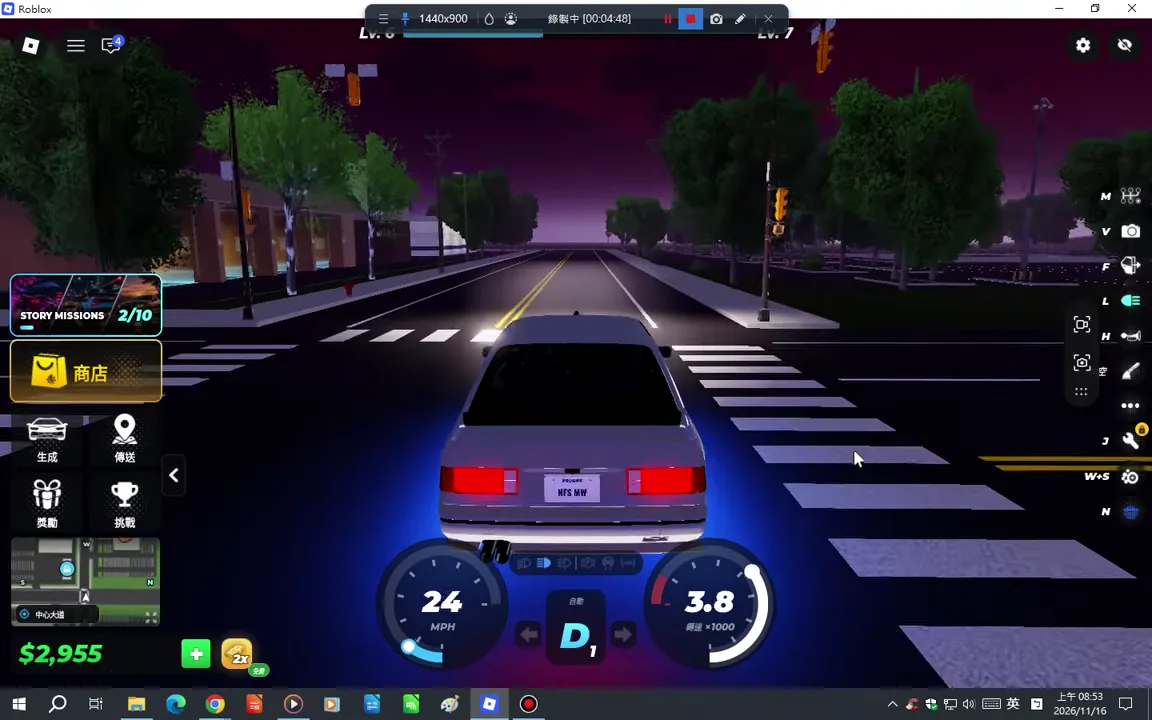
High-speed passes across multi-lane highways and detailed city junctions can tax slower devices. When frame drops make it difficult to judge near-miss gaps, open the in-game Settings menu and reduce the graphics options.
- Drive a familiar stretch from the starting plaza through a city junction onto the open highway to observe your baseline smoothness.
- Open Settings and lower one graphics option at a time.
- Repeat the exact same road stretch after each adjustment so you can feel whether steering response during near misses improves without sacrificing more visual clarity than necessary.
Using a Free Private Server to Reduce Server Load
Public servers hold up to ten players. Try the same road in a private session to see whether performance changes on your device.
The official game listing highlights free private servers as a performance remedy. Before pressing the green Play button on the Roblox experience page, scroll to the Servers tab, create or select an available private server, and launch your session solo or with invited friends to drive without public lobby overhead.